Category: E-Commerce SEO

Guides on SEO for Shopify, WooCommerce and other Melbourne online stores.

  • Shopify Markets for Australia and New Zealand

    Shopify Markets for Australia and New Zealand

    Shopify Markets SEO decides whether shoppers in Australia and New Zealand see the right prices and pages, without Google treating your pages as copies of each other. Markets lets one Shopify store sell to both countries, with local currency and its own web addresses. Plan on about an hour to set it up, then check Google Search Console over the following weeks.

    If you run a Melbourne online store and ship to Auckland or Christchurch, this guide is for you. You don’t need a developer for any of it.

    We cover what Markets tells Google, the exact steps in your Shopify admin, what good looks like and the mistakes that cause duplicate pages. Shopify updates its admin often, so a button may be named slightly differently, and we link the official help pages for each screen.

    What Shopify Markets tells Google about your store

    A market is a country or group of countries you sell to, each with its own currency, prices and web address. Picture a Brunswick candle maker who adds New Zealand. Without Markets, a shopper in Auckland sees Australian dollars and wonders if you even ship across the Tasman.

    For search, three behind-the-scenes tags matter. Hreflang is a small tag that tells Google which version of a page suits which country and language. A canonical tag tells Google which address is the main copy of a page. A sitemap is a list of your pages that you hand to Google.

    Shopify sets these for you. Its help page says hreflang tags are generated only for markets with a distinct domain, subdomain or subfolder, canonical tags are set automatically, and the sitemap lists every market’s pages. Shopify also excludes search crawlers from location-based redirects, so each version can be found.

    Google’s guidance agrees with that approach. It says to give each language or country version its own web address, to link the versions together, and to avoid redirecting people automatically based on their location. Good Shopify Markets SEO is mostly about choosing the right address style and not undoing the automatic settings.

    Shopify Markets SEO: three web address options Diagram of Shopify Markets SEO web address options: subfolders on your main domain, a separate domain or subdomain, or your primary domain only. Which address style fits your store? How will New Zealand shoppers find you? SubfolderSame domainyourstore.com.au/en-nzShopify recommends itSimplest for most stores Separate domainOwn domain or subdomainDNS changes neededAuthority built apartMore work to manage Primary onlyOne address for allNo separate NZ pagesCurrency changes onlyWeakest local signals Best SEO Agency Melbourne
    Three ways to give New Zealand its own web address

    Want Shopify Markets SEO set up properly the first time? Get a free consultation and we’ll check your store.

    How to set up Shopify Markets for Australia and New Zealand

    Follow these steps in order. They assume Australia is your primary market and New Zealand is your new one. Shopify’s own pages on international domains and international SEO for markets cover each screen.

    1. Check your plan before you touch any Shopify SEO settings

    International domains are available on the Basic Shopify plan or higher. You can’t create them from your store’s myshopify.com address. You also need Shopify Payments active to sell in more than one currency.

    In your admin, go to Settings, then Domains, and confirm your main domain is connected. You should see your own address listed as the primary domain.

    2. Add New Zealand as a market

    In your admin, select Markets and add New Zealand as a new market. Set the currency to New Zealand dollars and review your prices. You will see the new market appear in the list beside Australia.

    3. Choose your web address style

    Open the New Zealand market, then go to Market settings, Languages and domains and Manage domains. Shopify offers subfolders, a separate domain or subdomain, or your primary domain only. Shopify recommends subfolders for most stores, and for a small Melbourne store that is usually the right call.

    Select Use subfolders and enter a value in Domain suffix, such as nz. Shopify says language-only subfolders such as /en can exist only on your primary market, so secondary markets use language plus country, like /en-nz. Select Save, then open the live address to check it.

    4. Keep hreflang switched on

    Shopify adds hreflang for you. The only place to turn it off is Online Store, then Preferences. Leave it on. Shopify warns that switching it off can hurt SEO unless you have another hreflang set-up in place.

    5. Send your sitemap to Google

    In Google Search Console, go to Indexing, then Sitemaps, and enter sitemap.xml. Shopify’s sitemap includes every market’s pages. You should see the status change to Success, and the discovered page count should rise after your new market goes live.

    6. Inspect a New Zealand page

    Paste a New Zealand page address into the top search bar in Search Console to open URL Inspection. Look at the canonical details. Each market page should name itself as its own canonical, not the Australian page, because hreflang tags link the versions.

    7. Look at your shopping feed

    If you list products in Google Shopping through Merchant Center, check that the New Zealand country and currency are set there as well. Our guide to products not showing in Google Shopping covers the common feed errors.

    Not on Shopify? WooCommerce SEO works differently, because you add hreflang through a plugin or by hand, so these steps don’t apply. See our WooCommerce SEO checklist for Melbourne stores.

    What good looks like

    Check Search Console again after two to four weeks. Google can take time to crawl a new set of pages, so a slow start is normal. Use this table to read what you find.

    Shopify Markets SEO checks and what to do
    What you see What it means What to do
    Each page names itself as canonical Markets is set up correctly Nothing, keep monitoring
    Hreflang lists en-au, en-nz and x-default Google can match shoppers to the right version Nothing, leave the setting on
    Page indexing says a different canonical was chosen Google sees two pages as near copies Add New Zealand shipping, returns and price details to the pages
    A product shows a 404 in one market The product isn’t sold in that market Fine if intended, otherwise add it to the market
    Sitemap shows an error Google couldn’t read the file Resubmit sitemap.xml and recheck after a day

    Sources: Shopify Help Centre, International SEO for markets and Google Search Central, localised versions of your pages. Google says each language version must list itself, and return links must point both ways or the tags may be ignored.

    Want to see what fixing online store SEO looks like for other Melbourne businesses? See our results.

    Common mistakes

    These errors are easy to make and slow to spot. Each one has a simple fix.

    1. Using two domains for the same language. Shopify says adding two domains that target the same language might be flagged as duplicate content. Fix: use subfolders for New Zealand instead.
    2. Turning hreflang off. People do this to tidy the page source. Fix: switch it back on under Online Store, then Preferences.
    3. Redirecting shoppers by their location. Google advises against automatic redirects based on language or location. Fix: link between versions with a clear country selector.
    4. Deleting a market without redirects. Shopify warns that removing a subfolder or subdomain market leaves 404 pages. Fix: add URL redirects before you delete it.
    5. Copying Australian pages word for word. Near-identical pages can compete with each other. Fix: add New Zealand shipping times, returns and prices.

    If your Australian rankings are weak first, fix those before expanding. Our posts on why your Shopify store isn’t ranking in Melbourne and the Shopify SEO checklist for Melbourne online retailers are good places to start.

    Shopify SEO market setup checklist Checklist diagram for Shopify SEO market setup: before you start, while you set up, and after you launch. Shopify market set-up in three stages Setting up New Zealand BeforeCheck plan levelConfirm Shopify PaymentsPick subfolders DuringAdd the NZ marketSet NZD pricesSave and open the URL AfterSubmit sitemap.xmlInspect an NZ pageRecheck in 2 to 4 weeks Best SEO Agency Melbourne
    The three stages of a safe market launch

    What to do next

    Start with subfolders, keep hreflang on, submit your sitemap and check one New Zealand page in Search Console. Then give Google a few weeks. Our SEO services include online store reviews, and our four-step process begins with a free audit.

    Not sure your New Zealand pages are set up right? Let a second pair of eyes check your Shopify Markets SEO. Get your free consultation. No lock-in contracts.

    Shopify Markets SEO FAQs

    Does Shopify Markets create duplicate content?

    Not if it’s set up properly. Shopify gives each market page its own canonical tag and links the versions with hreflang. Duplicates mostly come from using two domains for the same language.

    Do I need a separate domain for New Zealand?

    No. Shopify recommends subfolders for most stores, which keeps everything on your main domain. A separate domain suits larger stores that want to build authority apart.

    Does Shopify add hreflang tags automatically?

    Yes, for markets with their own domain, subdomain or subfolder. You can turn it off under Online Store and Preferences, but Shopify warns that it can hurt SEO.

    How long until my New Zealand pages appear in Google?

    It varies, and nobody can promise a date. Submit your sitemap, inspect a page in Search Console and check again after a few weeks. More answers are on our FAQ and blog.

  • Products Not Showing in Google Shopping, Fixes

    Products Not Showing in Google Shopping, Fixes

    Products not showing in Google Shopping is stressful, because every missing product is a sale going to someone else. The most likely cause is that the product is still under review, or has been marked not approved, in Google Merchant Center. That is the free tool where Google stores your product details. Check the status of one missing product first.

    Google Shopping is the part of Google that shows products, prices and photos when someone searches. Your store sends product details to Google, and Google decides whether each product can appear. Shopping has two parts: paid ads and free listings.

    This guide gives you a five-minute check, the usual causes in order, the fix for each and when to ask for help. Nobody can promise a product will show by a set date, but these steps clear the common blockers for Melbourne store owners.

    Check this first

    These five checks take about five minutes. Do them before you change anything, and screenshot what you see so you have a record of the before and after.

    Five-minute product check Checklist for products not showing in Google Shopping: find one product in Merchant Center, read its status, read the issue, compare price and stock, then search the title. Five-minute product check 1Find one missing product in Merchant Center Products 2Read its status: review, limited or not approved 3Open the product and read the issue listed 4Match price and stock to your live product page 5Search the exact product title in a private window Best SEO Agency Melbourne
    Five checks to run before you change anything in your store

    Products not showing in Google Shopping after these checks? Get a free consultation and we’ll find the cause.

    Why products not showing in Google Shopping happens and how to fix it

    The causes below run from most to least common. Start with the one that matches the status you saw in Merchant Center.

    1. The product is still under review

    How to tell: the status says Under review or Processing. Google’s product status help page says reviews typically take up to 3 to 5 business days for Shopping ads and free listings. A new store or a big upload can take the full time.

    1. In Merchant Center, open Products and select one product.
    2. Read the status and any note beside it.
    3. Leave the product alone for a few business days. Editing it again can restart the wait.

    2. The product is not approved because of a data problem

    How to tell: the status says Not approved, and the product page in Merchant Center names the issue, such as a missing price, a missing photo or an unclear availability. Google’s product data specification lists what each field needs. It also says Google will start enforcing a minimum product image size of 500 x 500 pixels from 31 January 2027, so check your photos now.

    1. Open the product in Merchant Center and read the issue text.
    2. Fix that field in your store, not in Merchant Center, so the fix stays in place.
    3. Resync your feed and recheck the status after the next review.

    Our upcoming guide to disapproved products covers each error in more detail. For now, fix the first issue listed and move on to the next.

    3. Your Shopify or WooCommerce feed is not syncing

    How to tell: you changed a price or added a product days ago and Merchant Center still shows the old details. On Shopify, open Sales channels, then Google & YouTube, and look for sync errors. On WooCommerce, open Marketing, then Google Listings & Ads, and read the product feed tab. Menu names change, so use the app’s help page if yours differs.

    1. Check the connection shows your correct Google account.
    2. Reconnect the account if it shows an error.
    3. Run a manual sync, then check one product again after a few hours.

    Good Shopify SEO and WooCommerce SEO start with clean product data. Our Shopify SEO checklist for Melbourne online retailers and WooCommerce SEO checklist for Melbourne stores cover the store settings behind it.

    4. A free listings or ads program is switched off

    How to tell: products are approved, but nothing appears in the Shopping tab. In Merchant Center, open Growth, then Manage programs, and check that free listings and Shopping ads are switched on. Google changes these menus often, so follow the status help page if the names differ.

    1. Switch on the program you want.
    2. Check your shipping and returns details are filled in.
    3. Wait a few days before you judge the result.

    5. Your product page does not match your feed

    How to tell: the price, stock or product name on your page differs from Merchant Center. Google’s Shopping ads and listings policies expect your feed and your page to agree. A sale price that is missing from one side is the classic example.

    1. Open the product page and the Merchant Center product side by side.
    2. Match price, availability and title.
    3. Resync and recheck after the next review.

    A Melbourne homewares store, for example, might run a sale in its Shopify admin but leave the old price in its feed. Shoppers click through, see a different price and leave, and Google may pause the product until the two agree.

    Warning: do not delete your Merchant Center account, change your domain or edit DNS settings without expert advice. A wrong move can take every product offline at once.

    Causes at a glance

    Match what you saw to the likely cause. Timing is a guide only, because Google decides when it reviews.

    Why products are missing from Google Shopping, with signs and fixes
    Cause Sign Fix How long it can take to show
    Still under review Status says Under review or Processing Wait, then recheck Up to 3 to 5 business days (Google)
    Data problem Not approved, with an issue listed Correct the product data and resync After the next review
    Feed not syncing Store changes never reach Merchant Center Reconnect the app or plugin Hours to days after sync
    Program switched off Approved, but no free listings Switch programs on Days
    Page does not match feed Price or stock differs on the page Make page and feed agree After the next review

    Sources: review times come from Google’s product visibility and status help, which also says hidden products are automatically archived after 14 days. The 500 x 500 pixel image rule comes from Google’s product data specification.

    How to check the fix worked

    Open Products in Merchant Center and read the status again after a few business days. A status of Approved means Google can show the product. Limited means it can show in some places only, so open it and read why.

    Then check whether shoppers are arriving. In GA4, open Reports, then Acquisition, then Traffic acquisition, and look for the Organic Shopping channel. Google’s default channel group help says this channel covers visits from free Shopping listings. Give it a few weeks before you judge, and note each change and its date.

    If the number stays flat, do not keep changing things at random. Make one fix at a time, wait for Google to review it, and then check again. That way you know which change worked.

    Which fix do you need? Flowchart for online store SEO and Google Shopping: still under review means wait and watch, not approved means fix the product data, approved but unseen means check the feed sync and programs. Which fix do you need? What did the status show? Under reviewWait 3 to 5 business daysDo not edit repeatedlyCheck status daily Not approvedRead the issue textFix the product dataResync your feed Approved, unseenCheck the feed syncCheck programs are onMatch page to feed Best SEO Agency Melbourne
    What the status shows decides which fix to start with

    Want to see what fixing this looks like for other Melbourne businesses? See our results.

    When to get help

    Get a second pair of eyes if products are still not approved after four weeks of fixes, your Merchant Center account is suspended, or your website was hacked or has security warnings. Large catalogues with hundreds of errors are also better handled by an expert.

    This kind of repair is part of our SEO services, and our four-step process starts with a free audit of your store. Good online store SEO also helps your normal search rankings, which you can read about in our guide to why a Shopify store is not ranking.

    If your products are still missing after four weeks, it’s time for a second pair of eyes. Get your free consultation. No lock-in contracts.

    Products not showing in Google Shopping FAQs

    Why are my products approved but still not showing?

    Approved means Google can show them, not that it will. Check that the free listings program is on, your feed matches your page, and give Google a few days. Strong titles and clear photos also help.

    How long do products take to appear in Google Shopping?

    Google says reviews typically take up to 3 to 5 business days. After approval, how often a product appears depends on competition and relevance, so there is no fixed date.

    Do I need to pay for Google Ads to appear?

    No. Free listings let approved products appear without ad spend. Paid Shopping ads can add reach, but they are separate from the free listings.

    Can I fix this myself?

    Yes, for the first four causes. Status checks, feed syncs and data fixes are all in your store or Merchant Center. Get help for suspensions, security issues and large catalogues. More answers are on our FAQ and blog.
  • Why Your Shopify Store Isn’t Ranking in Melbourne

    Why Your Shopify Store Isn’t Ranking in Melbourne

    A Shopify store not ranking on Google is stressful, because every quiet week is a week of missed sales. The most likely cause is that Google has not indexed your pages yet, or something on your store is blocking it. The first thing to check is whether Google can find your store at all, by searching site:yourstore.com.au.

    Ranking is where your pages appear when someone searches. Indexing means Google has stored your page so it can show it. A page has to be indexed before it can rank, so that is where we start.

    This guide gives you a five-minute check, the usual causes in order, the fix for each and when to ask for help. No one can promise a ranking or a date, but these steps remove the common blockers for Melbourne store owners.

    Check this first

    These five checks take about five minutes. Do them before you change anything, and screenshot each result so you have a record.

    1. Search site:yourstore.com.au in Google. This shows the pages Google has indexed. No results means an indexing problem.
    2. Open your store in a private browser window. If it asks for a password, your store is hidden from the public.
    3. Paste one product link into the search bar at the top of Search Console. This is the URL Inspection tool, and it tells you if Google has that page.
    4. Search the exact title of a product page. Note whether your store, a rival or a marketplace appears.
    5. Test one product page in PageSpeed Insights and read the mobile result.

    Five-minute store check Checklist for a Shopify store not ranking: search site:, open a private window, inspect a product link, search a product title and test mobile speed. Five-minute store check 1Search site:yourstore.com.au in Google 2Open your store in a private window 3Inspect one product link in Search Console 4Search the exact product page title 5Test one product page for mobile speed Best SEO Agency Melbourne
    Five checks to run before you change anything on your store

    Shopify store not ranking after these checks? Get a free consultation and we’ll find the cause.

    Why a Shopify store not ranking happens and how to fix it

    The causes below run from most to least common. Start with the one that matches what you saw in the checks above.

    1. Your store is still in private mode

    How to tell: a private window shows a password page, and the site: search finds nothing. Shopify’s help page on preparing for launch lists private mode as a reason a store may not appear in search results.

    1. In your Shopify admin, go to Online Store, then Preferences.
    2. Find the store access section and turn private mode off.
    3. Open your store in a private window to confirm customers can see it.

    2. Google has not indexed your pages yet

    How to tell: the site: search shows few or no pages, or URL Inspection says the page is not on Google. Google says the total time can be anywhere from a day or two to a few weeks, and to allow at least a week after you ask.

    1. Verify your store in Search Console.
    2. Go to Indexing, then Sitemaps, type sitemap.xml and select Submit.
    3. Use URL Inspection on your best pages and select Request indexing.

    If Search Console says a page was found but left out, read our guide to crawled currently not indexed and how to fix it.

    3. Your Shopify SEO settings are thin or missing

    How to tell: your pages show supplier descriptions copied from the manufacturer, or a page title that just says Home. Google then has little reason to show your page over a rival’s. Good store SEO starts with titles and descriptions written for your own customers.

    1. For pages, go to Online Store, then Pages, open a page and select Edit website SEO. Shopify limits the page title to 70 characters and recommends 60.
    2. For your homepage, go to Online Store, then Preferences, and use the SEO section.
    3. Rewrite product descriptions in your own words, using the terms Melbourne shoppers type.

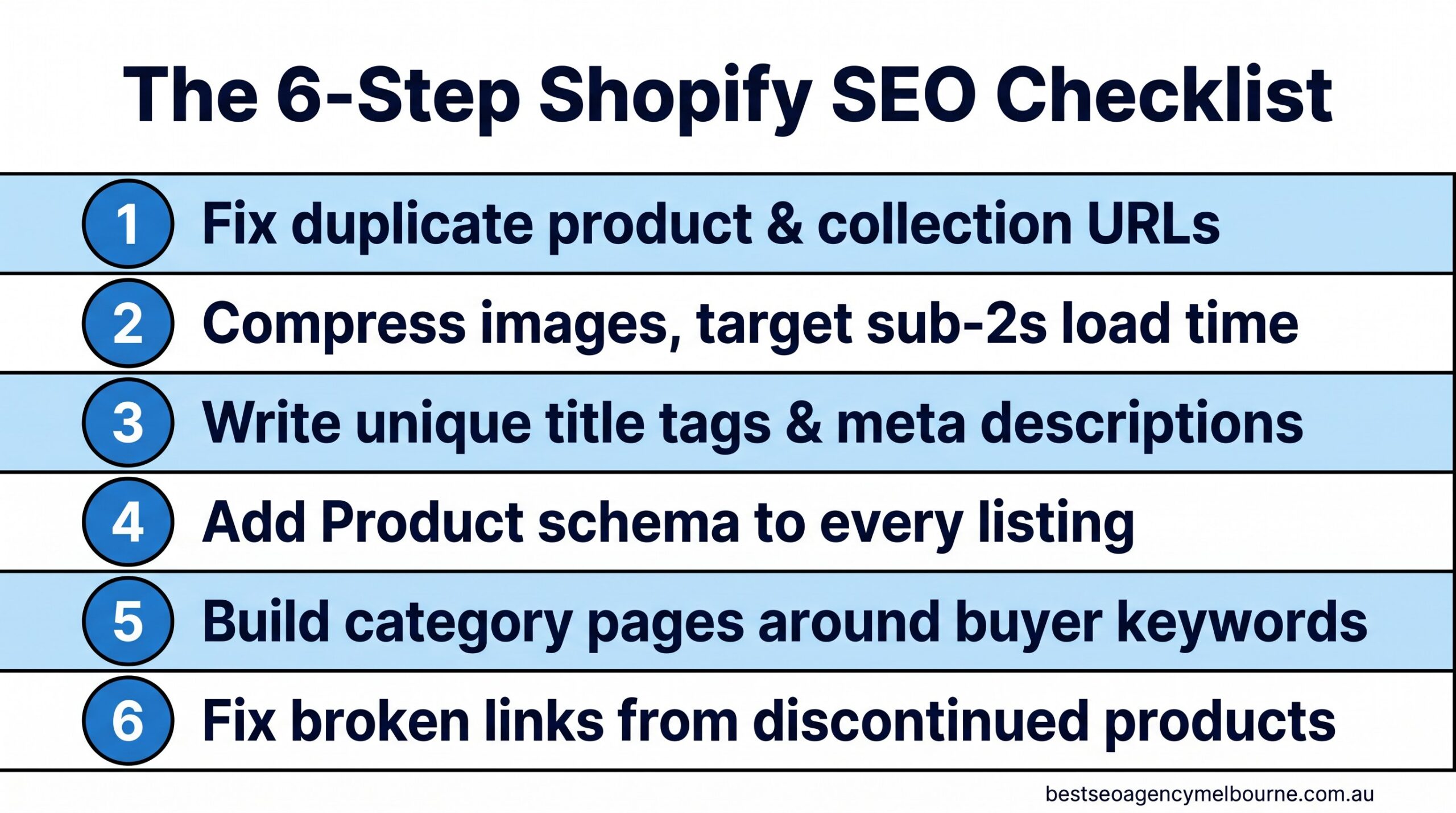
    Our Shopify SEO checklist for Melbourne online retailers covers duplicate URLs, titles and product schema in more detail.

    4. Your pages are slow on mobile

    How to tell: PageSpeed Insights flags the mobile result, or the Core Web Vitals report in Search Console lists poor URLs. Slow pages frustrate shoppers and can hold back online store SEO.

    1. Test your top product page and read the mobile tab.
    2. Compress and resize images before you upload them.
    3. In your admin, open Apps and uninstall unused ones one at a time, retesting after each.

    Warning: duplicate your theme from Online Store, then Themes before any code edit, and get help if you are unsure.

    5. You are chasing searches you cannot win yet

    How to tell: Search Console shows impressions but your pages sit far down the results, or you target one-word terms where big retailers dominate. A small Melbourne store rarely wins a head-to-head on a broad term, but it can win on a specific one, such as a product type plus a use or a suburb.

    1. In Search Console, open Performance, then Search results, and read the queries people actually used.
    2. Aim each page at one specific product search, adding Melbourne where it helps, such as same-day delivery or click and collect.
    3. Add helpful copy to your collection pages, such as who the range suits and how to choose, not just a grid of products.

    Common causes at a glance

    Match what you saw to the likely cause. Timing is a guide only, because Google decides when it recrawls.

    Why a Shopify store is not ranking, with signs and fixes
    Cause Sign Fix How long it can take to show
    Private mode on Password page in a private window Turn private mode off Days to a few weeks
    Not indexed yet site: search shows few pages Submit sitemap, request indexing A day or two to a few weeks (Google)
    Thin SEO settings Supplier copy, vague page titles Rewrite titles and descriptions Weeks, after Google recrawls
    Slow mobile pages LCP over 2.5 seconds, INP over 200 ms, CLS over 0.1 Compress images, remove unused apps Weeks, as field data updates
    Wrong searches Impressions but low positions Target specific product searches Weeks to months

    Statistics: Google says crawling can take anywhere from a few days to a few weeks. Google’s “good” Core Web Vitals marks are an LCP of 2.5 seconds or less, an INP of 200 milliseconds or less and a CLS of 0.1 or less. Source: web.dev, Web Vitals.

    How to check the fix worked

    Search site:yourstore.com.au again after a few days, then paste a fixed page into URL Inspection. If the page is on Google, the result will say so. Google warns that requesting a crawl does not guarantee a page will appear, so give it at least a week.

    Then open Performance in Search Console and watch impressions and clicks over four weeks. Rising impressions mean Google is showing your pages. Rising clicks mean shoppers are choosing them. Keep a simple note of what you changed and the date, so you can tell which fix made the difference.

    Which fix do you need? Flowchart for a Shopify store with SEO problems: no pages in Google means check private mode and submit the sitemap, pages indexed but weak means fix titles and target product searches, slow pages means compress images and remove apps. Which fix do you need? What did the checks show? No pages in GoogleTurn private mode offSubmit sitemap.xmlRequest indexing Pages indexed, weakRewrite titlesRewrite descriptionsTarget product searches Slow on mobileCompress imagesRemove unused appsRetest weekly Best SEO Agency Melbourne
    What the checks show decides which fix to start with

    Want to see what fixing this looks like for other Melbourne businesses? See our results.

    When to get help

    Get a second pair of eyes if nothing has changed after four weeks, Search Console shows a security issue or manual action, or your store moved platforms recently and traffic fell. If that last one sounds familiar, read how to recover rankings after a Shopify replatform.

    Warning: do not change your domain, edit DNS settings or disavow links without expert advice. A wrong move here can take your store offline or cost you rankings.

    Fixing a Shopify store not ranking is part of our SEO services, and our four-step process starts with a free audit of your store.

    If your store is still invisible after four weeks, it’s time for a second pair of eyes. Get your free consultation. No lock-in contracts.

    Shopify store not ranking FAQs

    How long does a new Shopify store take to rank?

    There is no fixed time. Google says indexing can take from a day or two to a few weeks, and ranking then depends on your competition. Check indexing first, then track impressions.

    Can I fix a Shopify store not ranking myself?

    Yes, for the first three causes. Private mode, sitemaps and page titles are all in your admin or Search Console. Get help for slow pages, migrations and security issues.

    Why does my store show for its name but nothing else?

    Searches for your own name are easy to win. Ranking for products needs pages that match what shoppers type, so work through causes three and five.

    Do I need a blog to rank?

    Not to get indexed, but helpful content can earn visits your product pages cannot. See our guide to setting up a Shopify blog for SEO. More answers are on our FAQ and blog.
  • How to Set Up a Shopify Blog for SEO

    How to Set Up a Shopify Blog for SEO

    Shopify blog SEO comes down to five jobs: create the blog, write clear titles and URL handles, fill in the search listing for each post, link posts to your products, and make sure Google can find them. Shopify already creates your sitemap and canonical tags, so the setup takes about an hour. Writing posts that answer real customer questions takes longer, and it’s where the results come from.

    If you run an online store in Melbourne, a blog gives you pages that can show up for searches your product pages never will, like “how to choose a cast iron pan”. This guide walks through the exact menu paths, what good looks like and the mistakes that waste your effort.

    What Shopify blog SEO does for your store

    Product and collection pages answer “I’m ready to buy” searches. A blog answers the earlier questions, such as how to pick a size, how to care for something or which option suits a small space. Those searches come from people who haven’t chosen a shop yet.

    Imagine a Brunswick candle shop. Its product pages target “soy candles Melbourne”. A post called “How to stop a candle tunnelling” can bring in someone searching that problem, show them a care guide and link them to the right candle. That visit would never have reached a product page directly.

    Google’s own advice is to create helpful, reliable, people-first content. A blog is the natural home for it. It also supports your wider online store SEO, because every post can link to a product or collection with plain, descriptive link text.

    Be realistic about effort, though. Orbit Media’s 2026 survey found only 13.9% of content marketers say their blog delivers strong results. Posts that exist only to fill a calendar rarely help. Posts that answer a clear customer question often do.

    Good first topics are easy to find. Check your customer emails, product reviews and the questions staff answer at the counter or on social media. A Fitzroy bike shop might write “How to size a commuter bike” and “What to carry on a ride to Williamstown”. Each one answers a real question and points to a product, which is exactly what the blog is for.

    Not sure your Shopify blog SEO is set up properly? Get a free consultation and we’ll check it with you.

    How to set up your Shopify blog for SEO

    Shopify menus change from time to time, so check each path against Shopify’s blog post help page if yours looks different.

    1. Create the blog

    In your Shopify admin, click Content > Blog posts > Manage blogs > Add blog. Give it a plain name such as “Guides” or “Advice”. Click Save.

    2. Set the blog’s URL handle

    Open Manage blogs and click the blog name. In the Search engine listing preview, click the pencil icon. You’ll see Page title, Meta description and URL handle. Your blog’s address starts with /blogs/ followed by the handle, so keep it short, in lower case, with dashes and no spaces.

    3. Choose a comments setting

    On the same screen, find the Comments section. New blogs default to comments off. Leave them off unless you can moderate spam, because spam comments add clutter, not value.

    4. Add your first post

    Click Content > Blog posts > Add blog post. Write a title that matches how a customer would search. Posts are hidden by default, so nothing goes live yet.

    5. Fill in the search listing

    Below the editor, click the pencil icon in the Search engine listing preview. Write a Page title of about 60 characters, since titles over 70 may be cut off. Add a Meta description of roughly 160 characters that ends with a reason to click. Keep the URL handle short.

    6. Add the author, tags, excerpt and image

    In the Organization section, choose the Author and the Blog. Add an Image, an Excerpt and a few Tags, such as “care guides” or “gift ideas”.

    7. Link to products and other posts

    In the post body, link to the product or collection the reader is likely to want, using words that describe the page. Also link to one or two related posts. Our guide to turning one customer question into a blog article shows how to pick topics.

    8. Publish and submit your sitemap

    Under Visibility, choose Visible, or use the calendar icon to schedule it. Shopify generates your sitemap.xml and canonical tags automatically. In Google Search Console, go to Indexing > Sitemaps, type sitemap.xml and click Submit. If the sitemap link is new to you, our plain-English guide to Search Console explains the basics.

    Shopify blog SEO setup steps Shopify blog SEO setup path: create the blog, set the handle, write the post, fill the search listing, add links and publish. Shopify blog setup in six moves Createthe blog SetURL handle Writethe post Searchlisting Link toproducts Publishand submit Content > Blog posts is where it all starts Best SEO Agency Melbourne
    The six moves that set up a Shopify blog for search

    What good looks like

    Use this table to judge each post after it’s been live for a few weeks. Search results take time to settle, so judge trends, not single days.

    What a healthy Shopify blog post looks like
    Check Good sign What to do if not
    Page title About 60 characters, one clear topic Rewrite it around the customer’s question
    Meta description Around 160 characters, ends with a reason to click Shorten it and lead with the answer
    URL handle Short, lower case, dashes Edit it and keep the redirect Shopify suggests
    Product links One or two, with descriptive link text Add links to the product a reader would want
    Search Console Page shows impressions within weeks Check the sitemap and request indexing
    Post length As long as the question needs Add the missing answers, don’t pad

    Statistics: Australian shoppers spent a record $82.6 billion online in 2025, up 14% on the year. Source: Australia Post eCommerce Report 2026. Only 13.9% of content marketers say their blog delivers strong results. Source: Orbit Media blogging statistics, September 2026.

    Want to see what a working blog and strong online store SEO looked like for other Melbourne businesses? See our results.

    Common mistakes

    Blogging without a customer question. Posts written only to hit a keyword rarely get read. Fix: start from emails, reviews and questions your team answers every week.

    Leaving the search listing blank. Shopify fills it in from your title and text, which may not read well in results. Fix: write the page title and meta description yourself, as in step 5.

    Changing URL handles after publishing. Old links break and rankings can slip. Fix: edit the handle only when needed, and keep the redirect Shopify preselects when you change it.

    Forgetting the internal links. A post with no links to products is a missed sale. Our Shopify SEO checklist for Melbourne online retailers covers the product and collection pages you should link to.

    Expecting the blog to fix Google Shopping. Product listings in Google Shopping run through your product data, not your blog. Fix: treat the blog and your product feed as two separate jobs.

    Online store SEO blog post checklist Online store SEO blog post checklist: answer one customer question, write the search listing, link to a product, add tags and check the sitemap. Before you hit publish 1. The post answers one real customer question 2. Page title and meta description are written by you 3. The URL handle is short and has dashes 4. It links to a product and a related post 5. Your sitemap is submitted in Search Console Best SEO Agency Melbourne
    Screenshot this list and run it before each new post goes live

    What to do next

    Set up the blog once, then publish one useful post a fortnight rather than five rushed ones. After four to six weeks, open Search Console, go to Performance > Search results and filter by the page address of each post. Look at impressions first, then clicks. Posts that earn impressions but few clicks usually need a better page title. Posts with no impressions may need a link from a related page, or a check that the sitemap was submitted. Keep a simple list of what you changed so you can see what worked.

    If you’re weighing platforms, our WooCommerce SEO checklist covers the WordPress side. When you’d like help with Shopify SEO, see our SEO services and how we work on our process page.

    Want a blog plan that brings in customers, not just traffic? Get your free consultation. No lock-in contracts.

    Shopify blog SEO FAQs

    Does a Shopify blog help SEO?

    Yes, when posts answer real customer questions and link to your products. Shopify’s blogging engine is built in, so you don’t need an app to start.

    Where do I add a blog in Shopify?

    Go to Content > Blog posts > Manage blogs > Add blog. Then use Add blog post to write your first article.

    How often should I post on my Shopify blog?

    Often enough to keep quality high. One strong post a fortnight beats weekly posts you rush. Judge by what customers search for, not a fixed calendar.

    Do I need to submit my Shopify sitemap to Google?

    Shopify creates sitemap.xml for you. Submitting it in Search Console under Indexing > Sitemaps helps you check Google can read it. More answers are on our FAQ and blog.
  • WooCommerce SEO Checklist for Melbourne Stores

    WooCommerce SEO Checklist for Melbourne Stores

    A WooCommerce SEO checklist helps you find the settings and page fixes that stop Google from showing your products. Most of it is inside your WordPress dashboard, and you don’t need a developer for the first pass.

    The short answer: check your store is visible to search engines, set clean product links, write unique titles and descriptions, fill in category pages, share your product data with Google and submit a sitemap. A Melbourne store owner can work through the list below in a day or two, then repeat it each quarter.

    This guide explains what the checklist tells you, walks through eight steps with exact menu paths, shows what good looks like, and covers the mistakes we see most often on WooCommerce stores.

    What a WooCommerce SEO checklist tells you

    WooCommerce is a shopping plugin for WordPress. That’s good news for SEO, because you control every page. It also means small settings, such as a ticked box or a messy link structure, can quietly hold the whole store back.

    A checklist turns that into a list you can tick, so nothing gets missed when you’re busy running the shop. It tells you which pages Google can reach, whether each product page has something unique to say, and whether Google has your prices and stock. Google’s own SEO best practices for ecommerce sites cover the same ground: product data, structured data, links and site structure.

    Here’s a Melbourne example. Picture a Collingwood homewares store with 400 products, where every category page is just a product grid. Shoppers searching “linen tablecloths Melbourne” are likely to find competitors instead, because those category pages give Google very little to read. A short, useful description on each category would be the first fix on the list.

    The opportunity is real. Australians spent a record $82.6 billion online in 2025, up 14% on the year before, according to Australia Post.

    Want a second pair of eyes on your WooCommerce SEO checklist? Get a free consultation and we’ll check your store.

    How to work through the WooCommerce SEO checklist

    1. Make sure search engines can see your store

    Go to Settings > Reading. Find Search engine visibility and make sure “Discourage search engines from indexing this site” is unticked, then click Save Changes. This box is often left ticked after a site launch, and it can keep a whole store out of Google.

    2. Set clean product links

    Go to Settings > Permalinks and scroll to Product permalinks. You’ll see options such as Default, Shop base and Shop base with category. Pick one and stick with it. From version 10.5, WooCommerce uses the deepest category in links that include the category, as explained in its product permalink update. Warning: changing this on a live store changes every product address. Plan redirects first, or get help before you switch.

    3. Write unique product titles and descriptions

    Go to Products > All Products and click a product to edit it. Use the product name field at the top, the main description box below it, and the Product short description box further down. Write in your own words. Supplier descriptions copied by hundreds of stores give Google no reason to pick yours. Add what a Melbourne buyer wants to know, such as sizes, materials, delivery times and returns. Click Update to save.

    4. Add alt text to product images

    In the product editor, click the main image under Product image on the right. In the media window, fill in Alternative Text with a plain description, such as “Natural linen tablecloth, 8 seater”. Our guide to optimising product images for search and speed covers file sizes too.

    5. Fill in category pages

    Go to Products > Categories, hover over a category and click Edit. Add two or three helpful sentences in the Description box about what’s in the range and who it suits. Click Update. Whether the description shows on the page depends on your theme, so check the live page on your phone as well as your computer.

    6. Handle out-of-stock and discontinued products

    In the product editor, the Inventory tab under Product data shows the stock status. Keep out-of-stock pages live and suggest alternatives. For products gone for good, redirect the old address to the closest category. WooCommerce doesn’t add redirects itself, so you’ll need a redirect plugin or your developer.

    7. Share your products with Google

    If you install the free Google for WooCommerce extension, it appears under Marketing > Google for WooCommerce. It connects your store to Merchant Center so products can appear in free listings and Google Shopping. Google explains the options in share your product data with Google.

    8. Submit your sitemap

    WordPress creates a sitemap at yourdomain.com.au/wp-sitemap.xml unless an SEO plugin replaces it. In Search Console, go to Indexing > Sitemaps, paste the address and click Submit. You’ll see a status of “Success” once Google reads it.

    WooCommerce SEO checklist WooCommerce SEO checklist: search visibility on, clean product links, unique product copy, image alt text, category descriptions, out-of-stock handling, product data shared with Google and sitemap submitted. Eight-step store checklist 1Search visibility switched on 2Clean product permalinks 3Unique titles and descriptions 4Alt text on product images 5Category descriptions added 6Out-of-stock plan in place 7Products shared with Google 8Sitemap submitted Best SEO Agency Melbourne
    Work through these eight steps, then repeat them each quarter

    What good looks like

    Use this table to judge where your store stands after the first pass. Check Search Console under Indexing > Pages for the indexed count, and Merchant Center for product approvals. Give changes a few weeks before you judge them, because Google needs time to recrawl your pages.

    WooCommerce store health check
    Check Good sign Warning sign What to do
    Indexed pages Products and categories show in Search Console Few pages indexed Recheck steps 1 and 8
    Product copy Written in your words Same text as the supplier Rewrite top sellers first
    Category pages Short, useful intro Product grid only Add two or three sentences
    Product data Products approved in Merchant Center Disapproved items Fix price and stock mismatches
    Organic sales Rising over several months Flat or falling Review titles and categories

    Australian online shopping: a record $82.6 billion was spent online in 2025, up 14%, across 9.8 million households. Source: Australia Post eCommerce Report 2026.

    Want to see what fixing online store SEO looks like for other Melbourne businesses? See our results.

    Common WooCommerce SEO mistakes

    1. Leaving the “discourage search engines” box ticked. Fix: untick it in Settings > Reading and request indexing for your home page in Search Console.
    2. Changing permalinks on a live store without redirects. Fix: keep the old structure, or map every old address to its new one before switching.
    3. Copying supplier descriptions. Fix: rewrite your best sellers first, adding sizes, materials, delivery to Melbourne suburbs and care details.
    4. Too many plugins. Each one can slow your store. Fix: go to Plugins > Installed Plugins, deactivate and remove the ones you don’t use, and test speed on a phone.
    5. Deleting sold-out products. Fix: keep the page with alternatives, or redirect it to the closest category.
    6. Ignoring Search Console. Many store owners never open it. Fix: check Indexing > Pages once a month for pages Google has dropped, and fix the reasons listed there.

    Online store SEO menu paths in WordPress Online store SEO menu paths in WordPress: Settings then Reading for visibility, Settings then Permalinks for product links, Products then Categories for category text, and Indexing then Sitemaps in Search Console. Where to find each setting Settings > ReadingSearch visibility Settings > PermalinksProduct links Products > CategoriesCategory descriptions Indexing > SitemapsIn Search Console Best SEO Agency Melbourne
    The four menus you’ll use most on a first pass

    What to do next

    Start with steps 1, 2 and 8, because they affect every page. Then rewrite your top 20 products and your main categories. Keep a simple spreadsheet of what you changed and when, so you can match changes to sales in GA4 later. If you also run a store on another platform, our Shopify SEO checklist for Melbourne online retailers covers the Shopify side. WooCommerce SEO is part of our SEO services for Melbourne online stores.

    If your store still isn’t showing in Google after a quarter of fixes, it’s time for an expert check. Get your free consultation. No lock-in contracts.

    WooCommerce SEO checklist FAQs

    Do I need an SEO plugin for WooCommerce?

    Not to start. WordPress handles sitemaps and you can write titles and descriptions in the editor. A plugin helps with meta descriptions and redirects as your store grows.

    Is WooCommerce good for SEO?

    Yes. It runs on WordPress, so you control your pages, links, content and blog. Results depend on how well the store is set up and written, not the platform alone.

    How do I get my products into Google Shopping?

    Connect your store to Google Merchant Center, for example through the Google for WooCommerce extension. Approved products can then appear in free listings and Shopping results.

    How often should I review my store’s SEO?

    Run the checklist each quarter, and after any theme change, plugin update or migration. More answers are on our FAQ and blog.

  • How to Recover Rankings After a Shopify Replatform: A 2026 Guide for Melbourne Stores

    Your Melbourne store just moved to Shopify and the numbers are heading the wrong way. Search Console shows fewer impressions, the phone has gone quiet, and someone in the business is asking why the new site “broke” everything the old one used to rank for. This is one of the most common calls our team takes, and the good news is that a replatform does not have to mean a lasting ranking loss. Most of the damage comes from a small, fixable set of mistakes: missing redirects, rewritten product URLs, and metadata that never made the trip across. This guide covers why rankings drop after a Shopify migration, how long recovery genuinely takes, and the fixes that get a Melbourne store back to where it was, and often further ahead.

    Not sure whether your Shopify move is actually recoverable or something more serious? Our free 30-minute audit will tell you, even if you never become a client. Book a free consultation

    Why rankings drop after a Shopify replatform

    A replatform changes more than the shopfront. Product, collection and blog URLs are usually rebuilt around Shopify’s own structure, which means a page that ranked for three years at one address can suddenly live at another. If the old address returns a 404 instead of forwarding visitors and Google to the new one, every backlink and every scrap of ranking history pointing at it goes to waste.

    Metadata is the second casualty. Title tags, meta descriptions and structured data that were fine-tuned over months are easy to lose in a rebuild, especially when a theme swap or app installation overwrites them by default. Page speed can move in either direction too. Shopify’s hosting is generally fast, but a heavy theme, unoptimised images or a stack of speed-draining apps will undo that advantage quickly. Anyone weighing up a migration is really weighing up a technical SEO project, not just a platform swap, and it pays to treat it that way from the start.

    Internal linking is the quiet one. Old sites accumulate links between related products, categories and guides over years. Rebuild the site structure and those internal pathways often vanish, which makes it harder for Google, and shoppers, to find the pages that used to convert well.

    How much traffic loss is normal, and when it signals a real problem

    Some wobble is expected. A temporary dip of 10 to 15 percent in the first couple of weeks is considered normal while Google recrawls and re-indexes the new site, according to 2026 analysis from Search Engine Journal. A sustained drop beyond 30 percent, on the other hand, is treated as a sign of a genuine technical problem rather than a normal transition. Separate 2026 research from SEO.Domains puts it in sharper terms: 60 to 80 percent of all site migrations produce measurable traffic loss, and only around one in ten migrations ends with rankings actually improving.

    The scale of the drop tracks directly with execution quality. A 2026 AI-driven analysis reported by MarTech Cube links poorly executed migrations to a 20 to 40 percent loss in organic traffic, and separate figures show that badly handled moves can shed 20 to 60 percent of traffic within days when redirects are missing or broken. Nearly half of poorly executed migrations never fully recover their previous traffic levels. The table below summarises what a normal transition looks like next to a migration that has gone wrong.

    Signal Normal transition Migration gone wrong
    Traffic dip in week 1-2 10-15%, then recovering 30%+ and still falling
    Search Console coverage report Old URLs shown as redirected Old URLs shown as “not found (404)”
    Ranking movement by week 6 Back near pre-migration positions Still 10+ positions lower
    Backlink profile Redirected to new equivalent pages Pointing at dead or generic pages

    The recovery timeline you should expect

    With a complete, clean redirect map, Shopify’s own migration guidance puts ranking normalisation at four to six weeks, and Google’s Search Central documentation on site moves describes a similar four to twelve week window for a well-executed move, noting explicitly that “301 and other permanent redirects don’t cause a loss in PageRank.” Stores that plan the move properly typically see a dip of 10 percent or less and recover somewhere between one and six months, depending on how many pages and how much non-branded search traffic the store relies on.

    Infographic: the Shopify replatform SEO recovery timeline

    What Melbourne stores can expect after moving platforms, from redirect to full recovery.

    Weeks 1-2
    Crawling and indexing fluctuate as Google finds the new URLs
    Weeks 4-8
    Rankings stabilise where the 301 redirect map is complete
    Months 1-3
    Well-executed moves are usually fully recovered
    Months 6-12
    Poorly executed moves may still be clawing back lost rankings

    Source: Shopify SEO Migration Guide 2026; Google Search Central site move documentation 2026.

    If your Search Console graph looks like the “months 6-12” box above, talk to our Melbourne team — fixing a broken migration is usually a two to four week job, not a rebuild.

    The redirect and metadata checklist that actually protects rankings

    Partial redirect maps are the single biggest cause of migration traffic loss, according to Google’s Search Central guidance on site moves. Every URL that carried ranking value on the old site needs a permanent 301 redirect to its closest equivalent on Shopify, with no chains and no temporary redirects standing in for the real thing. If your store already has a solid product catalogue, our guide on internal linking strategy for large product catalogues is worth reading alongside this one, since a migration is the moment those internal pathways are most likely to break.

    Checklist item Why it matters
    Full 301 redirect map, old URL to new Passes ranking signals and link equity across, per Google’s own guidance
    Title tags and meta descriptions carried over Prevents Google re-evaluating pages from scratch
    Product and collection schema reinstated Keeps star ratings, price and stock showing in results
    Updated XML sitemap submitted in Search Console Speeds up discovery of the new URL structure
    Redirects kept live for at least 12 months Google needs repeated crawls, and old backlinks keep pointing at the old address

    Infographic: traffic impact by migration quality

    Organic traffic loss ranges reported for well-executed versus poorly executed Shopify migrations.

    Well-executed migration (clean 301s)2-10%
    Poorly executed migration (missed redirects)20-60%

    Source: SEO.Domains migration recovery analysis 2026; MarTech Cube SEO migration risk study 2026.

    What this costs, how long it takes, and what goes wrong

    A proper migration audit and redirect map for a mid-sized Melbourne store, somewhere in the range of 200 to 2,000 products, typically takes two to four weeks of dedicated work before launch, plus another four to eight weeks of monitoring afterwards. Stores that skip the audit and redirect their homepage only, hoping Shopify will “figure out” the rest, are the ones we see with the 20 to 60 percent traffic drops described above.

    The most common mistakes we see in Melbourne stores that have already replatformed: redirecting every old URL to the new homepage instead of its true equivalent, which Google treats as a soft 404; forgetting that collection page URLs changed structure entirely; and losing product schema because a new theme does not support it out of the box. Every one of these is fixable without another full rebuild, which is the part most business owners do not realise until someone tells them. It is also worth reviewing your Shopify SEO checklist for Melbourne online retailers, since several of the same fixes apply whether you are launching fresh on Shopify or repairing a migration that already happened.

    Our own case work backs this up. One Melbourne retailer we work with grew organic revenue from $310,000 to $2.1 million within 14 months, largely through the kind of category architecture and redirect discipline described here. You can see the detail on our results page, and the same principles apply just as much to fixing a migration as to growing from scratch. Our process for a recovery project starts with the same free audit as any new engagement, so you know exactly what broke before anyone touches your store.

    Common questions about Shopify migration SEO

    Will my rankings ever fully recover? In most cases, yes, provided the redirect map is complete and stays live. The exception is when competitors have moved into the ranking gap during the recovery window, which is why speed matters. See our full FAQ for more on typical SEO timelines.

    Should I redirect every old URL to my new homepage? No. A blanket homepage redirect is one of the most common causes of lasting ranking loss, because Google treats it as a sign the original page no longer exists in any real form.

    How do I know if my migration was done properly? Check Search Console’s Coverage report for your old URLs. If they show as redirected, that is a good sign. If they show as “not found,” you have gaps to fix.

    A Shopify replatform does not have to cost you the rankings you spent years building. Most of the damage traces back to a handful of fixable gaps: missing redirects, lost metadata and broken internal links, and every one of them has a known fix with a realistic timeline attached. If your store is still waiting on recovery, get a second set of eyes on it. Book your free consultation — no lock-in contracts, a reply within 24 hours, and a Melbourne-based team who has fixed this exact problem before. For more guides like this one, visit our blog.

  • How to Write Product Titles That Rank and Convert: A Melbourne Online Store’s Guide

    A Melbourne homewares store we looked at recently had a product called simply “Vase” on its category page. Type “ceramic vase Melbourne” into Google and that product was nowhere to be found, not because the vase was wrong for the search, but because the title never told Google, or the shopper, what made it worth clicking.

    A product title has to do two jobs at once: tell Google exactly what the product is so it matches the right searches, and tell a shopper enough in the first few words to make them click instead of scrolling past. Get both right and the same product starts showing up for searches it was invisible to before. This guide covers what actually goes into a title that does both.

    Most Melbourne stores never touch product titles after the initial site build, because the platform generates something reasonable by default and nobody thinks to revisit it. That default is rarely wrong, but it is rarely optimised either, and the gap between reasonable and optimised is exactly where the extra traffic sits.

    What Google actually needs from a product title

    There are two different “titles” worth knowing about. The page title (or SEO title) is what shows as the blue link in ordinary Google search results. The product title is a separate field used in Google Shopping and Merchant Center listings, and it has its own rules. Google’s own product data specification allows up to 150 characters, but only around the first 70 characters reliably show on a Shopping ad or free listing, so the most important words need to come first. Google also strictly disallows promotional language in the title itself, phrases like “sale” or “free shipping” belong in a different field, not the title, or the product risks disapproval.

    Google also asks for the distinguishing detail of each variant, colour, size, material, to sit inside the title itself rather than being left to the product description. Two t-shirts that differ only by colour need two different titles, not one generic title covering both, otherwise Google struggles to tell shoppers apart and may treat the listings as duplicates of each other.

    Infographic · product-title-formula-melbourne-ecommerce

    The anatomy of a title that ranks and converts

    Brand
    e.g. Nordic Home

    Product
    e.g. Ceramic Vase

    Attributes
    e.g. Handmade, Matte

    Size / Colour
    e.g. 30cm, Sand

    Alt text: Diagram showing the four-part product title formula for e-commerce SEO — brand, product, key attributes, and size or colour, in that order.

    Not sure whether your own product titles are working against you? Our free 30-minute consultation includes a live look at how your current titles are performing, even if you never become a client.

    What the best product titles actually do differently

    Store Growers analysed 151 product titles from 120 advertisers who were already ranking in the top 5–10 results for competitive search terms, giving a genuinely useful picture of what “good” looks like in practice rather than theory. The original research found the average title length among top performers was 70 characters, with the sweet spot sitting between 75 and 100. Just as tellingly, 81% of these advertisers used a different title in their product feed to the one shown on the actual product page, meaning the “set and forget” approach most Melbourne stores default to leaves real performance on the table.

    The research also found that titles longer than 70 characters, while less visible in full, still helped: Google reads the entire 150-character field even when a shopper only sees the front portion, so the extra words widen the range of searches a product can match without ever being seen directly. This is why a title built purely to “look nice” at 40 characters often underperforms one that runs longer but stays readable throughout.

    Title element How many top advertisers use it Why it matters
    Capitalise Each Word 97% Reads as a proper product name rather than a sentence fragment
    Digits instead of spelled-out numbers 97% Saves characters and matches how people actually search (“3 pack”, not “three pack”)
    Symbols to separate details (– / |) 70% Breaks the title into scannable chunks instead of one dense phrase
    Brand name included 44% Useful when shoppers search by brand, less useful for unbranded generic products
    Extra descriptive keywords beyond the core name 32% Widens the net of searches the product can match without misrepresenting it

    This is exactly the kind of detail our e-commerce SEO service works through product-by-product for Melbourne Shopify and WooCommerce stores, because a formula that works for one category rarely transfers cleanly to another.

    Infographic · product-title-changes-impressions-clicks-2026

    What happened when one store rewrote its top product titles

    Impressions
    +39%

    Clicks
    +38%

    Alt text: Bar chart showing a one-week before-and-after result from rewriting product titles — impressions up 39% and clicks up 38%, from Store Growers’ 2026 product title optimisation case study.

    Results like that will not carry over automatically. If your titles are already close to best practice, our client results show the bigger gains usually come from combining title fixes with the category and internal linking structure around them.

    What this costs, how long it takes, and what goes wrong

    Rewriting product titles is one of the lowest-cost SEO jobs available to a Melbourne online store, because it touches existing content rather than requiring new pages, images or design work. A store with under 100 products can usually have titles rewritten and tested within a week. Larger catalogues need a formula and a feed rule rather than manual edits product by product, which is a short technical setup rather than an ongoing cost, similar to the structure we cover in our Shopify SEO checklist for Melbourne retailers. If your catalogue runs into the thousands of products, talk to our team about setting up feed rules rather than trying to rewrite each one by hand.

    Movement in Google Shopping and organic search can appear within days of a title change, since product feeds refresh far more often than a page needs to be re-crawled, though a fuller picture of organic ranking movement usually takes three to six weeks, in line with what we walk through during our audit and strategy process.

    The most common mistake is stuffing every possible keyword into the title until it reads like a list rather than a product name; Google’s own guidance is to describe the product clearly, not maximise keyword count. The second is leaving every product in a range with an identical title except for a colour swapped at the very end, buried past the 70-character cut-off where nobody sees it. The third is copying the on-page product title straight into the Shopping feed without checking whether it still fits the 150-character limit once modifiers are added, which causes the listing to be truncated mid-word. A fourth, less obvious mistake is changing titles constantly to chase small ranking shifts; Google needs time to re-evaluate a listing after a change, so testing one meaningful version for a few weeks beats rewriting a title every few days.

    Common questions

    Should my Shopify product title and my Google Shopping title be identical?
    Not necessarily. Store Growers found 81% of top advertisers use a different title in their Shopping feed than on the product page itself, usually because the feed title is built for search matching first.

    How long should a product title actually be?
    Aim for 75–100 characters as a sweet spot; the front 70 characters are what most shoppers actually see, so the most important words need to sit there.

    Will better titles alone fix poor product page rankings?
    They help significantly, but titles work best alongside solid internal linking between related products and clean category structure; see our FAQ for the full picture on e-commerce SEO scope and pricing.

    Do I need special software to manage product titles at scale?
    Not for a small catalogue; Merchant Center’s built-in attribute rules handle most formula-based changes. Larger stores with thousands of SKUs often benefit from a dedicated feed management tool once manual edits become impractical.

    Getting product titles working harder

    A product title is one of the few pieces of SEO copy a Melbourne store owner can rewrite this afternoon and plausibly see movement within days. Lead with the brand and product name, add the attributes a shopper actually filters by, keep the important words inside the first 70 characters, and resist the urge to stuff in every keyword a product could theoretically match.

    Book a free, no-obligation consultation with a Melbourne SEO expert. We will review your product titles alongside the rest of your store and give you an honest picture of what is worth fixing first. Get a free consultation, or browse more guides on the Best SEO Agency Melbourne blog.

  • Internal Linking Strategy for Large Product Catalogues: A 2026 Guide for Melbourne Online Stores

    A Melbourne homewares store we looked at recently had 2,400 products live and Google had indexed 900 of them. The rest weren’t broken, banned or duplicated, they were simply orphaned, buried four or five clicks from the homepage with no other page on the site linking to them. Internal linking is the least glamorous part of e-commerce SEO and the one large catalogues get wrong most often. This guide covers how to structure links across hundreds or thousands of products so Google can find and rank them, what that work costs and takes, and the mistakes that quietly bury inventory for months.

    Why internal links make or break a large product catalogue

    Google finds new and updated pages by following links, and a product page with no internal links pointing to it is, for practical purposes, invisible no matter how good the page itself is. Online shopping in Australia has kept growing regardless: Australians spent a record $82.6 billion online in 2025, up 14% year on year, with 9.8 million households now shopping online (Australia Post eCommerce Report). That growth means more competition for every category and product search, and the stores winning that competition are usually the ones whose entire catalogue is actually crawlable, not just the handful of hero products linked from the homepage.

    Not sure how much of your catalogue Google can actually see? Our free 30-minute audit will show you, even if you never become a client. Book a free consultation.

    The three-layer structure that works for big Melbourne stores

    Google’s own guidance is straightforward: pages need to be reachable through crawlable links, not just a sitemap, for Google to reliably find and understand them (Google Search Central). For a catalogue of any real size, that means building three deliberate layers rather than relying on a single mega-menu: category pages that group related products and link out to every product in that group, cross-links between related or complementary products on each product page, and a handful of curated collection or guide pages that pull together products around a use case, gift idea or season. The table below compares this to the flat structure most stores default to without meaning to.

    Structure How shoppers find products How Google finds products
    Flat (homepage → search bar only) Only if they already know what they want Poorly, relies almost entirely on the sitemap
    Category-only Browsing within one category Reasonably, but cross-category products get missed
    Three-layer (category + cross-links + collections) Browsing, related-product prompts, and curated guides Well, every product has multiple paths leading to it
    The three-layer internal linking structure A diagram showing homepage linking to category pages, category pages linking to product pages, product pages cross-linking to related products, and collection pages pulling products together across categories. The three-layer linking structure Homepage Category A Category B Collection page Product 1 Product 2 Product 3 Product 4 Dashed teal lines = related-product cross-links between product pages bestseoagencymelbourne.com.au
    Infographic: how category pages, product pages and collection pages link together to make every product reachable.

    What it costs, how long it takes, and where large catalogues go wrong

    For a store in the low thousands of SKUs, a proper internal linking overhaul, category page rebuilds, related-product modules and a set of collection pages, typically runs $2,500 to $6,000 depending on how much of it can be templated in your platform versus built by hand, and takes four to eight weeks. The upside is meaningful: analysis of e-commerce sites shows that putting a systematic internal linking structure in place can lift organic traffic by around 67% within 90 days while cutting bounce rates by roughly a third, because shoppers who land on one product are shown a genuine path to the next one (Digital Applied, Internal Linking Strategy 2026). On the flip side, an estimated 41% of even top-performing e-commerce sites are still underusing internal links, and roughly a quarter of product pages on a typical large catalogue receive no internal links at all, which is exactly how a $150 product can sit unsold for a year despite being exactly what someone searched for.

    If a chunk of your catalogue looks like it’s sitting in the “orphaned” pile, fixing the worst of it is usually a two-week first pass. Talk to our Melbourne team about what that would look like for your store.

    The most common mistake is treating the mega-menu as the whole strategy. A dropdown menu helps human visitors but Google discounts navigation links far more heavily than links inside actual content, so category descriptions, buying guides and related-product blocks matter more than most store owners assume. The second mistake is auto-generated “related products” widgets that just show four random items from the same category, which technically link but add nothing useful to either the shopper or the search engine.

    The state of internal linking on e-commerce sites Three statistics: 41 percent of top ecommerce sites underuse internal links, 25 percent of product pages have zero internal links, 67 percent traffic lift within 90 days from a systematic internal linking structure. The state of e-commerce internal linking 41% of top e-commerce sites underuse internal links 25% of product pages have zero internal links 67% traffic lift within 90 days after fixing the structure Source: Digital Applied, Internal Linking Strategy 2026 · bestseoagencymelbourne.com.au
    Infographic: how much organic traffic large catalogues typically leave on the table through weak internal linking.

    A practical starting checklist

    Start by pulling a list of pages Google hasn’t indexed from Search Console and checking how many clicks each one is from your homepage. Anything past three clicks is a strong candidate for a new cross-link or collection page. From there, add a genuine “related products” block based on shared attributes (material, use case, price bracket) rather than just category, and write two or three seasonal or gift-guide collection pages that link across categories your main navigation keeps separate. If your product images are also part of the slow-page problem, our guide on optimising product images for search and speed covers that alongside this. And if you’re on Shopify specifically, our Shopify SEO checklist covers several structural fixes that pair well with the linking work here. You can see the fuller version of how we run this process on our process page.

    Frequently asked questions

    How many internal links should a single product page have?
    There’s no fixed number, but as a rough guide, a category link, three to six genuinely related products, and a mention in at least one collection or guide page is a reasonable minimum for a page you want to rank.

    Will this work on Shopify, or do I need a custom-built site?
    It works on Shopify, WooCommerce and Magento. The templates differ but the underlying structure, category, cross-link, collection, is platform-independent.

    Do out-of-stock products need to keep their links?
    If the product will come back in stock, yes, keep the page and its links live rather than deleting it, since removing and recreating pages repeatedly damages the ranking history you’ve already built.

    A large catalogue with weak internal links is inventory Google can’t see and shoppers can’t find. Fixing the structure is one of the highest-leverage changes available for a Melbourne online store. Book your free consultation. No lock-in contracts, a Melbourne-based team, reply within 24 hours. More guides like this are on our blog.

  • How to Optimise Product Images for Search and Speed

    On most online stores, product photos are the single biggest reason the site loads slowly — and slow product pages are one of the fastest ways to lose a sale on mobile. Images now make up roughly half of the average page’s total weight, and on around 85% of desktop pages the largest single element on screen is an image. For a Melbourne retailer with hundreds of product photos, that means image optimisation isn’t a nice-to-have finishing touch. It’s one of the highest-leverage fixes available, and one of the easiest to get wrong. Here’s what it actually involves, and what it should cost to fix properly in 2026.

    Why product images are usually the biggest speed problem on your store

    A typical desktop page now carries around 2.3MB of data, and images account for close to half of that on their own. Product galleries make this worse than most page types, because a single product page might load a hero photo, four to six thumbnails, and a handful of lifestyle shots, all before a shopper has scrolled past the fold. If those images are uncompressed JPEGs straight out of a camera or supplier feed, that page can easily carry five to ten times more image data than it needs to.

    It’s also worth noting that this problem tends to grow quietly. A store that launches with a lean, well-optimised catalogue can end up carrying years of accumulated bloat as new product lines get added by different staff, agencies or supplier feeds, each with their own habits around file size and format. By the time it’s noticeable in day-to-day browsing, it’s usually already affecting Core Web Vitals scores and, by extension, how Google evaluates the page experience of your store.

    The real cost of slow, unoptimised product images

    The numbers here are hard to ignore. Every extra second of load time costs an estimated 7% in conversions, and 53% of mobile shoppers abandon a page that takes more than a few seconds to load. Brands that fully implement responsive images — serving the right image size for each device rather than one large file to everyone — see an average 24% improvement in mobile conversion rate and a 31% reduction in mobile bounce rate compared with stores serving the same oversized image to every visitor. For an online store already spending on traffic, that gap sits entirely on the table: the shoppers already arrived, they just left before the page finished loading.

    Format Typical size vs. JPEG Browser support in 2026
    JPEG Baseline Universal
    WebP ~25–35% smaller ~97–98% of browsers
    AVIF ~50% smaller ~93% of browsers

    Google’s own web.dev guide to WebP images is a useful practical reference here — it’s the same guidance Chrome’s own performance auditing tool, Lighthouse, checks your site against.

    What “optimising” a product image actually means

    Optimisation isn’t just running images through a compressor once and moving on. A proper approach covers:

    • Format — serving WebP or AVIF to browsers that support them, with a JPEG fallback for the few that don’t.
    • Correct dimensions — generating multiple sizes (a “srcset”) so a phone downloads a phone-sized image, not a desktop-sized one shrunk down in the browser.
    • Compression level — finding the quality setting where file size drops significantly with no visible loss for a shopper deciding whether to buy.
    • Lazy loading — only loading images as a shopper scrolls to them, rather than every image on the page loading immediately.
    • Descriptive alt text and filenames — which affects accessibility and image search visibility as much as it affects speed.
    Image format file size comparison Bar chart comparing typical file size of a product photo in JPEG, WebP and AVIF formats, showing WebP around 30 percent smaller than JPEG and AVIF around 50 percent smaller than JPEG. Same Product Photo, Three Formats JPEG (original) 1.0 MB WebP ~0.67 MB AVIF ~0.5 MB Best SEO Agency Melbourne · illustrative, based on 2026 industry benchmarks
    Figure 1: The same product photo shrinks significantly just by changing format, before any other optimisation.

    Alt text and filenames: the SEO half of the equation

    Image optimisation isn’t only about speed — it’s also a genuine traffic source in its own right. Google Images drives a meaningful share of all web search traffic, and product pages where the alt text and filename directly match the product name and key attributes see roughly 47% higher image impression rates than generic filenames like “IMG_4021.jpg”. Stores that optimise this consistently across their catalogue report around 40% higher traffic from Google Images specifically. Google’s own Image SEO best practices documentation covers this in detail — the short version is that alt text should describe what’s actually in the photo (for example, “navy blue merino wool jumper, front view” rather than just “jumper” or the product SKU).

    Not sure how much of your catalogue still needs this? Book a free consultation and we’ll show you exactly where your product images are costing you speed and search visibility.

    A practical workflow for optimising product images

    For a Melbourne store working through an existing catalogue, this is usually the most efficient order of operations:

    1. Keep a high-resolution master file for every product, stored separately from what actually gets uploaded to the site.
    2. Batch-export web versions in WebP (and AVIF where your platform supports it), with a JPEG fallback generated automatically.
    3. Generate at least three sizes per image for responsive serving — mobile, tablet and desktop — rather than one fixed size for everyone.
    4. Set lazy loading for every image below the first screen of content.
    5. Write specific, descriptive alt text for each product image as part of the product listing process, not as an afterthought.
    6. Submit an image sitemap so Google can discover and index your product photos directly.
    Product image optimisation workflow Six-step workflow diagram for optimising product images: keep master files, batch-export WebP and AVIF, generate responsive sizes, enable lazy loading, write descriptive alt text, and submit an image sitemap. Product Image Optimisation Workflow 1 Keep masterfiles 2 Export WebP/ AVIF 3 Responsivesizes 4 Lazy loadbelow fold 5 Descriptivealt text 6 Imagesitemap Best SEO Agency Melbourne
    Figure 2: The six-step workflow we run through a Melbourne store’s product catalogue.

    Have a big catalogue and no time to do this manually? See how our e-commerce SEO service handles this at scale.

    What this costs and how long it takes for a Melbourne store

    For a small catalogue (under 100 products), a one-off image optimisation pass is typically a few days of work, often bundled into a broader technical SEO fix. For a larger store running into the thousands of product images, expect a proper project rather than a quick task — batch processing tools handle the bulk conversion, but responsive sizing, alt text and sitemap work still need a human check to avoid generic, unhelpful descriptions being applied automatically across the board. The upside is that unlike a lot of SEO work, the return here is measurable almost immediately: page speed scores and Core Web Vitals results improve as soon as the images go live, well before any ranking changes show up.

    Ongoing maintenance matters just as much as the initial clean-up. New product photos are usually the ones that slip back into old habits first, particularly when they come from a supplier feed or a photographer who isn’t briefed on your site’s format and sizing standards. Building a short checklist into your product upload process — format, size, alt text — is a small process change that prevents most of the problem from creeping back in over the following twelve months.

    How this fits into your wider e-commerce SEO

    Image optimisation is one piece of a broader technical picture for online stores. We covered several other quick wins — duplicate URLs, title tags, product schema, category pages and broken links — in our Shopify SEO checklist for Melbourne online retailers, which is worth working through alongside this if you haven’t already. Our e-commerce SEO service covers image optimisation as a standard part of an ongoing technical health check for growing stores.

    Frequently asked questions

    Will optimising my images actually improve my Google rankings, or just my page speed?
    Both, though through different mechanisms. Faster pages improve the Core Web Vitals signals Google uses as part of page experience, while descriptive alt text and filenames make your product photos discoverable through Google Images search directly — a separate traffic source most Melbourne stores barely tap into.

    Do I need to manually optimise every single product photo?
    No. Format conversion, compression and responsive sizing can all be automated through your platform or a plugin. The one part that genuinely benefits from a human — writing specific, accurate alt text — is worth doing properly rather than automating with generic templates, since generic alt text captures very little of the search benefit.

    What’s a realistic file size target for a product photo?
    As a rough guide, aim for well under 200KB per product image after optimisation, even for a large, detailed hero shot — modern compression and formats like WebP and AVIF make this achievable without a visible drop in quality on a typical product page.

    Can I just install a compression plugin and call it done?
    A compression plugin handles part of the job well — usually format conversion and basic compression — but it won’t fix generic alt text, missing responsive sizes, or a missing image sitemap on its own. Treat a plugin as one step in the workflow above rather than a complete solution, and check its output on a handful of product pages after installing it to confirm image quality still looks right at typical zoom levels.

    Ready to see where your store is losing speed? Book your free consultation →

  • Shopify SEO Checklist for Melbourne Online Retailers: 6 Fixes Before You Spend on Ads

    Most Melbourne online stores are leaking traffic they already paid to earn. A customer finds a product on Google, the page takes four seconds to load, and they bounce back to the results before your add-to-cart button even renders. That is not a marketing problem. It is an SEO problem, and on Shopify it is usually one of six fixable things.

    This checklist is written for Melbourne retailers running Shopify stores who want more sales from organic search without adding to their ad spend. We will walk through what to fix, roughly what it costs to fix it, and how long the results take to show up.

    Not sure where your own store stands? Our free 30-minute audit will tell you exactly which of these six items is costing you the most, even if you never become a client. Book a free consultation.

    1. Fix duplicate product and collection URLs

    Shopify creates more than one URL for the same product the moment it sits in two collections, which is common for stores selling anything with variants (size, colour, bundle). Google sees two web addresses showing near-identical content and has to guess which one matters. Often it picks neither, and both versions rank worse than a single clean page would.

    The fix is a canonical tag pointing every duplicate back to one preferred URL, plus a tidy-up of your collection structure so a product is not filed in five places at once. For a mid-sized catalogue (200 to 800 products) this is usually a half-day to full-day job. You can spot the problem yourself by searching site:yourstore.com.au "product name" in Google and checking whether more than one result comes back for what should be a single page.

    2. Get images loading in under two seconds

    Product photography sells the item, but an oversized image file slows the whole page down, and speed is now a ranking factor as well as a conversion one. Pages that load in under two seconds bounce at around 9%; pages that take five seconds or more bounce at closer to 38%, according to 2026 page speed benchmark data.

    Six-step Shopify SEO checklist infographic showing fixes for duplicate URLs, image compression, title tags, product schema, category pages and broken links for Melbourne online retailers

    The six fixes in this checklist, in the order we recommend tackling them.

    Compressing product images (Shopify apps like TinyIMG or built-in image optimisation can do this without a developer) and switching to next-gen formats such as WebP typically claws back one to two seconds of load time on a store that has never had this done before.

    3. Write title tags and meta descriptions that are not the product name twice

    The single most common Shopify SEO fault we see in Melbourne stores is a title tag that just repeats the product name with no context: “Blue Cotton Shirt – Blue Cotton Shirt”. Google uses the title tag to decide what a page is about and to write the blue clickable headline in search results. A better pattern includes the product, a distinguishing detail, and the brand: “Blue Cotton Shirt – Breathable Summer Fit | Store Name Melbourne”.

    This is a content task, not a technical one, and it is the cheapest item on this list to fix. A store with 300 products can realistically rewrite its top 50 highest-traffic title tags and meta descriptions in a week. Start with the products that already get traffic but few sales; a stronger title and description often lifts the click-through rate on a page Google already ranks, which is faster than trying to rank a brand-new page from nothing.

    4. Add Product schema to every listing

    Schema markup (also called structured data) is a small block of code that tells Google specific facts about a page: this is a product, it costs this much, it is in stock, and it has this star rating. Without it, Google has to infer those details from the page text, which it does imperfectly. With it, your listing can show a price, a rating and stock status directly in the search result, which is proven to lift click-through rate.

    What Product schema can add to a Shopify listing
    Element Shown in search results without schema Shown in search results with schema
    Price No Yes, as a visible line
    Star rating No Yes, if reviews are present
    Stock status No Yes (“In stock”)
    Typical CTR uplift Baseline 20-30% higher, per structured data research

    If your Google Business Profile listing or product pages look like the plain “before” example in that table, talk to our Melbourne team — adding Product schema across a Shopify catalogue is usually a two-week job, not a rebuild.

    5. Build category pages around what buyers actually search for

    Product pages rank for specific items. Category (collection) pages are what rank for the broader, higher-volume searches like “women’s linen shirts Melbourne” or “waterproof dog beds Australia”. A collection page with no written content beyond a product grid gives Google almost nothing to work with, so it under-ranks for exactly the searches that bring the most traffic.

    Adding 150 to 300 words of genuinely useful buying-guide content above or below the product grid, built around the terms real customers use, is one of the highest-return fixes on this list because it targets searches with real commercial intent.

    Bar chart showing organic search drives 33 to 43 percent of Australian ecommerce traffic and converts at 2.5 to 3.5 percent, higher than the 1.4 percent site-wide average

    Organic search is the highest-converting channel most Melbourne Shopify stores have, and it does not stop working when you pause spending.

    Australians spent a record $82.6 billion shopping online in 2025, with 24% of all retail spend now happening online, according to the Australia Post eCommerce Report 2026. Organic search conversion rates on Shopify typically sit between 2.5% and 3.5%, well above the 1.4% site-wide average, according to Shopify’s own 2026 conversion benchmark data. Every category page you improve is competing for a genuinely large and growing pool of buyers.

    6. Fix broken links from discontinued products

    Every retailer discontinues stock, and every discontinued product page that is simply deleted becomes a dead link, a 404 error for anyone who had it bookmarked, shared it, or found it in a search result that has not updated yet. Dead links waste the ranking value that page had built up and create a poor experience for shoppers who arrive expecting to buy something that no longer exists.

    The fix is a 301 redirect from the old product URL to its closest live replacement or the relevant category page, set up every time a product is discontinued rather than in an annual clean-up.

    What this costs, how long it takes, and what goes wrong

    For a Melbourne store with 200 to 500 products, working through all six items typically costs somewhere between a solo freelancer’s day rate for a light pass and a few thousand dollars for a full technical and content overhaul, depending on how much of the catalogue needs rewriting. Expect the technical fixes (schema, redirects, canonical tags) to show up in Google Search Console within two to four weeks, and the content fixes (title tags, category pages) to move rankings over eight to twelve weeks as Google re-crawls and re-evaluates the pages.

    The most common mistake we see is stores treating this as a once-off project rather than an ongoing habit. New products get added every month without title tags being checked, and by month six half the catalogue has drifted back into the same problems. Building these six checks into your product upload process is what actually protects the ranking gains. Once they are in place, a Shopify blog set up for SEO is a good next step for reaching shoppers earlier in their search. If your store is not showing up on Google at all, start with our guide to why your Shopify store isn’t ranking. If your products are missing from Shopping results, work through our guide to products not showing in Google Shopping. Selling to New Zealand too? See Shopify Markets SEO for Australia and New Zealand.

    Quick FAQ

    Do I need a developer to fix Shopify SEO issues? Most of this checklist (title tags, image compression, category content) can be done inside Shopify’s standard editor or with well-reviewed apps. Schema markup and canonical tag clean-ups usually benefit from a specialist, particularly on larger catalogues. See our full FAQ for more on how engagements typically run.

    Does this checklist apply to WooCommerce? The ideas are the same, but the settings live in different places. See our WooCommerce SEO checklist for Melbourne stores for the exact menu paths.

    Will this work for a store with under 50 products? Yes, smaller catalogues actually see faster results because there is less to fix and Google can re-crawl the whole site more quickly.

    Should I fix all six at once or one at a time? If budget is tight, start with title tags and image compression first. Both are quick to implement and tend to move rankings fastest, which makes it easier to justify tackling the remaining items afterwards.

    If you are still comparing agencies before committing budget to any of this, our guide on how to choose an SEO agency in Melbourne without signing a 12-month mistake covers the questions worth asking before you sign anything. And if product page copywriting is your bigger gap than the technical side, our guide to writing for humans and Google at the same time is a useful next read.

    None of these six fixes require a full site rebuild, and none of them require pausing your ad spend while you sort them out. They are the groundwork that makes every other marketing dollar you spend work harder, because a store that ranks well and loads fast converts better regardless of where the visitor came from.

    Book your free consultation. No lock-in contracts, reply within 24 hours, Melbourne-based team. Get started.